


Joinue TV
Put your event's photos, polls, countdown and a message on a TV in the room, and choose what shows from your phone.
Updated
Joinue TV turns a TV at your party into a screen for the event. It plays slides from the event, one after another, and you run it from your phone. This guide walks through setting it up, what each part of the remote does, and what it can and can't do. Setting it up takes about five minutes; do it before guests arrive.
What the TV shows
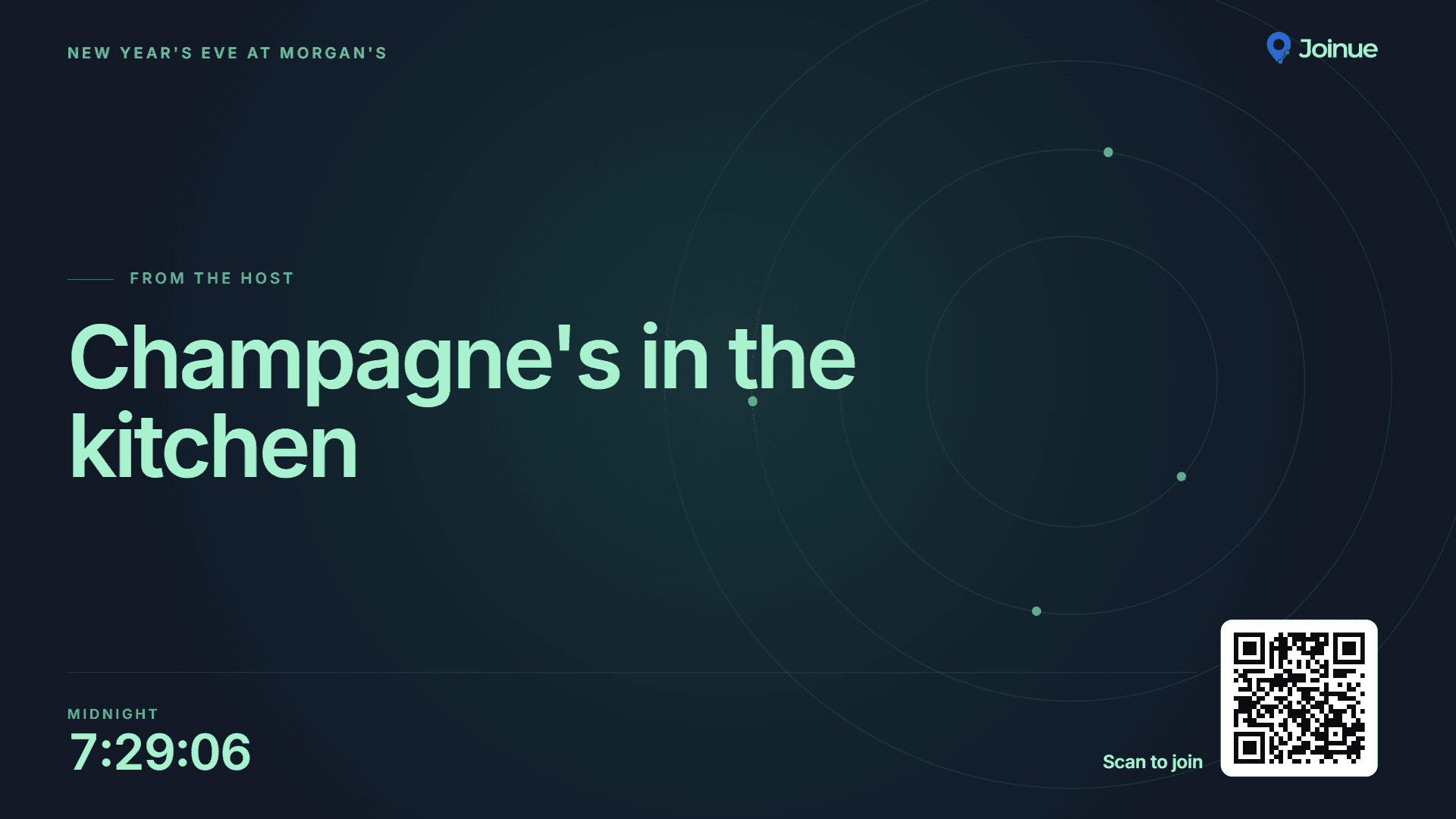
- 1The slide that's up. Slides take turns: a welcome, the photos guests add to the gallery, open polls, the best-dressed vote, the countdown, and a line you type (like this one).
- 2The countdown, if the event has one. It can sit in the corner, play as its own slide, and fill the screen in the last minutes.
- 3A QR code. Guests scan it to open the invite on their phones. It only works around the party, and you can turn it off.
Turn it on
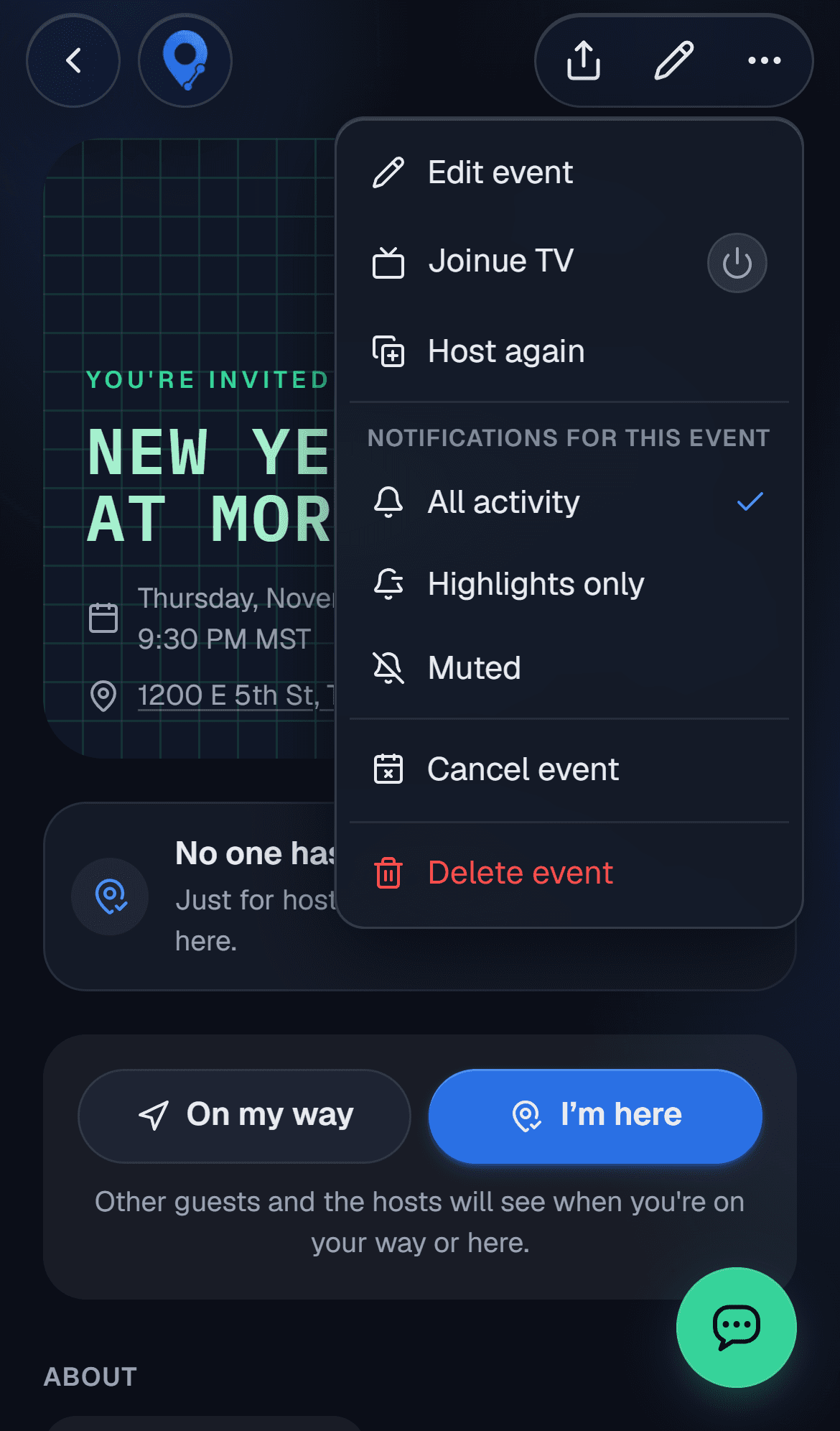
- 1Open the event's menu (the three dots at the top) and tap Joinue TV. On a computer you can also press the power button on Joinue TV in the event's side menu. The power button turns green and glows while it's on. You can also switch it on when you create or edit the event, under Prep.
Only hosts can turn it on or see its code. Once it's on, the remote opens. Later, on a phone, tap the TV button at the end of the event's name. On a computer, Joinue TV is always in the event's side menu, under the chat, with its power button; while it's off, its page explains it and turns it on.
Get it on the TV
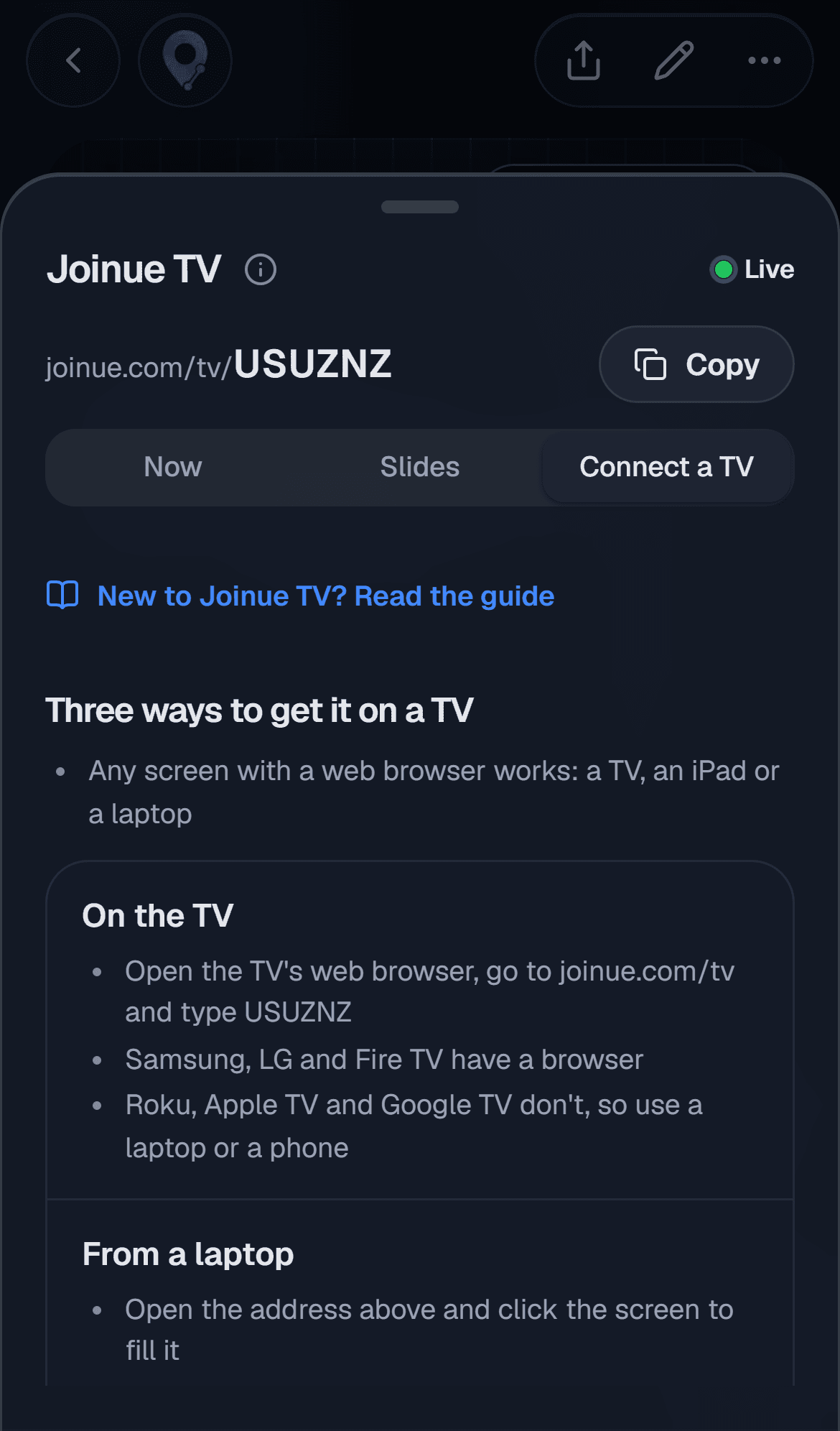
- 1Live means Joinue TV is on and its address works. It can't tell whether a TV is showing it, so check the TV itself.
- 2The address and its code. Copy puts the address on your clipboard, to send to a laptop.
- 3The remote's three parts: Now, Slides and Connect a TV. It opens on Connect a TV right after you turn it on.
Any screen with a web browser works: a TV, an iPad or a laptop. Pick one way:
- On the TV: open the TV's web browser, go to joinue.com/tv and type the code. Press OK on the TV's remote to fill the screen and hide the browser's address bar, and Back to leave full screen. Samsung, LG and Fire TV have a browser; Roku, Apple TV and Google TV don't, so use a laptop or a phone.
- From a laptop: open the address and click the screen to fill it (Esc leaves full screen). Then send the tab to the TV with Chrome's Cast or AirPlay, or plug in an HDMI cable.
- From an iPhone: open the address in Safari, turn the phone sideways and use Screen Mirroring. That phone is busy while it mirrors, so run the remote from another host's phone or a laptop.
Choose what plays: Slides
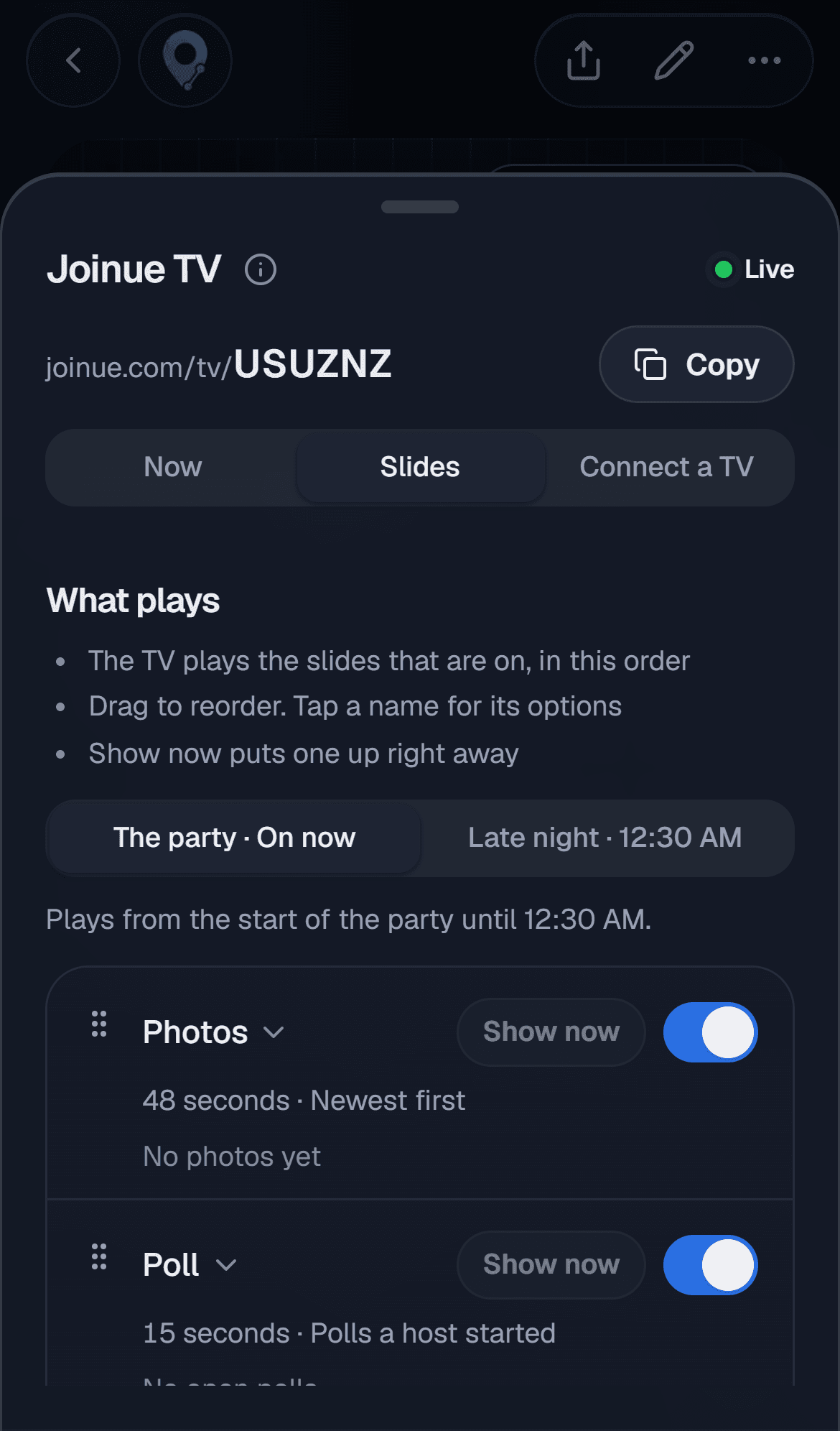
- 1Parts of the night. Most events have one. The New Year's Eve setup adds Late night, photos and your message from 12:30 AM. Change when it starts under the tabs. The part playing says On now.
- 2Drag a slide by its handle to change the order.
- 3Tap a slide's name for its options and how long it stays up.
- 4Show now puts that slide on the TV right away, then the others carry on after it.
- 5The switch turns a slide on or off. A slide with nothing to show yet (no photos, no open poll) is skipped by itself, and its row says why.
Further down Slides: the countdown's settings (in the corner, as its own slide, or off, and when it fills the screen), the background, the QR code switch, and the New Year's Eve setup. The background can be your banner, your banner blurred, colors only, or a photo just for the TV that you drag to frame; the invite keeps its banner either way. If your banner is a poster with its own words on it, the TV blurs it until you pick, so its words don't run into the screen's. Changes save as you make them and reach the TV within a few seconds.
During the party: Now
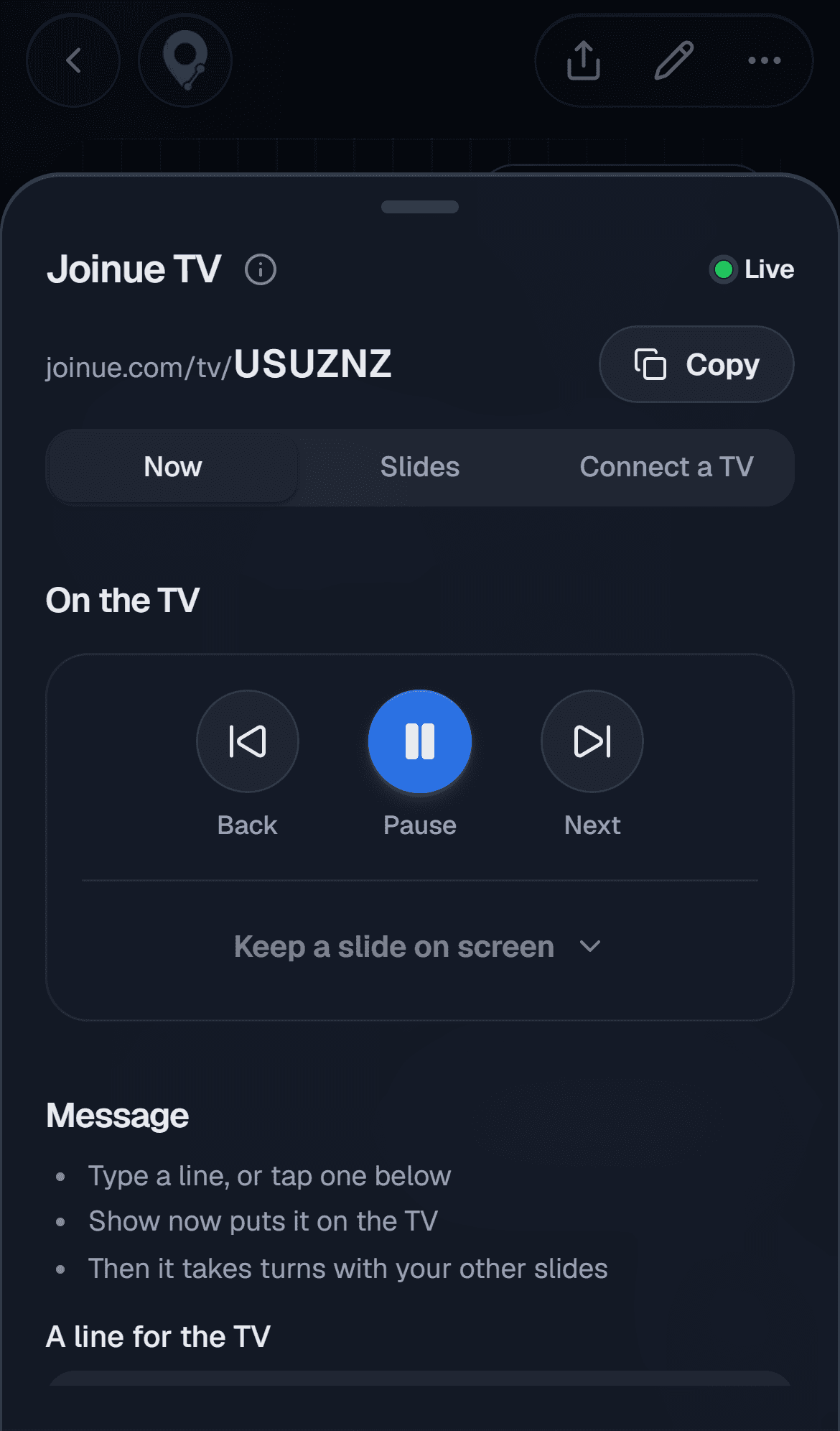
- 1Back, Pause and Next work like any remote. Pause keeps each TV on the slide it's showing until you tap Play.
- 2Keep a slide on screen, under them, holds a slide you pick (the winner, a toast) until you release it.
- 3Type a line for the TV and tap Show now, just under the box. Nothing goes on the TV until you tap it, and a line you haven't sent is kept if you close the remote.
Also in Now: take a photo off the TV (it stays in the gallery), close the best-dressed vote to show the winner, and end the night early, which leaves only photos playing. Before the start time, Start the slides now begins early.
What it can and can't do
- It never shows the event's address or the guest list.
- Photos come only from the event's gallery. On a public event you can have a guest's first photo wait for your approval.
- A change reaches the TV in a few seconds, not instantly.
- It can't tell you whether a TV is connected. Look at the TV.
- Each event has one screen. Several TVs can open the same code and show the same thing.
- The phone that mirrors to the TV can't also be the remote.
- Guests can't control it. Only hosts and co-hosts see the remote and the code.
New Year's Eve
In Slides, Use the New Year's Eve setup sets the night up in one tap: photos, polls, the vote and your message, a late-night set after 12:30, and a countdown that fills the screen 10 minutes before midnight. If the event has no countdown it adds one to midnight. Everything stays editable. See Countdown.
Turn it off, or change the code
To turn it off, open the event's menu (the three dots) and tap Joinue TV, or on a computer press the power button on Joinue TV in the side menu. Every TV showing it goes dark and the QR code stops working; your slides and settings are kept for next time. If the code got out, Change the code in Connect a TV darkens every TV on the old code until you type the new one in.
Related articles
Did this answer your question?
Still need a hand?
A real person reads everything. Tell us what you're stuck on and we'll get back to you.