


Create an event
Set up anything from a dinner to a festival in a couple of minutes.
Updated
- 1Tap the create button (the plus in the middle of the bottom bar on a phone, or Create at the top of the side menu on a computer) and pick Create event.
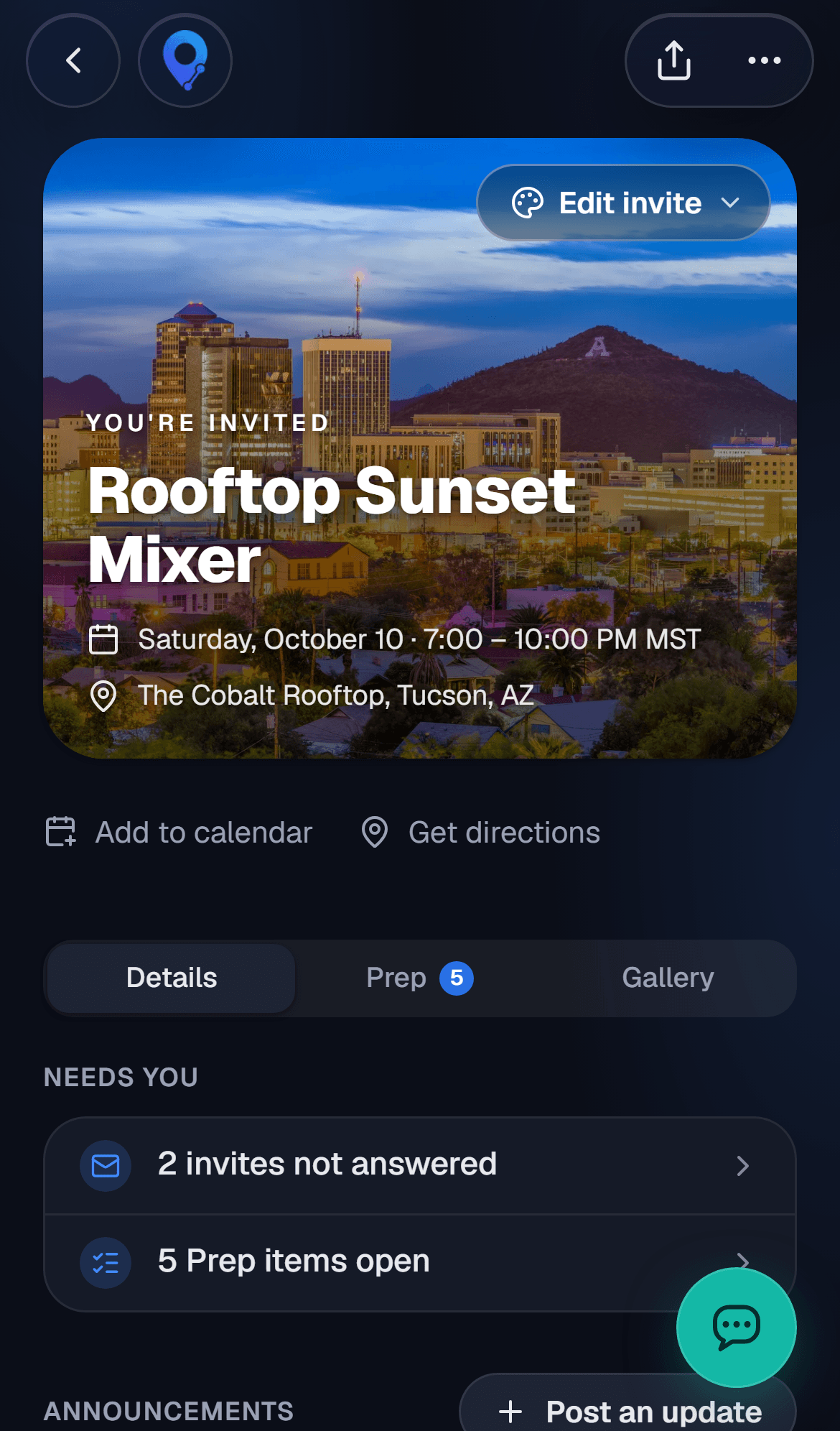
- 2Give it a name, a time, and a place. Type the name right on the invite, and tap the date and place lines on it to fill them in. Everything else is optional, and the end time can stay empty (No end time).
- 3Choose who can see it under Who can come, Visibility: Public, Network, Orbit only, or Private.
- 4Tap Create (Create event at the bottom of the page). You get a share link you can send anywhere, and guests can RSVP even without a Joinue account.
Writing the description somewhere else first? Paste it in. Markdown (headings, lists, links, bold) arrives formatted rather than as stray symbols.
Help guests find the place
Under Where, tap How to get there to leave a short note and a photo, like which gate to use, where to park, or the tree you'll be under. Guests find it under the address on the event page, and the reminder before the event points them to it. Anyone who can see the address can see the note and photo, including guests who open your share link without an account.
Keep the address for the people coming
When the place is an address you typed rather than a venue, Hide the address until people RSVP is on under Guests & RSVPs. Everyone else sees the area. You, your co-hosts, anyone who says going or maybe (guests answering on your share link without an account included), and members of the Space hosting it see the address, the note and the photo, and it appears the moment they reply. Turn it off if you'd rather anyone who can see the event knows where it is.
Places you've hosted at before show up under Where as Your recent places. Tap one to fill in the address along with the note and photo you left last time.
Don't know the place yet? Tap Place TBD under Where, and guests see "Place TBD" until you set it. On a Public event, the composer warns you: an event with no place can't be found on Discover, Explore or Pulse, because they find public events by where they are.
Several stops in one day
Brunch, then the spa, then drinks? Tap Several stops under Where. Type each stop as one line, like Brunch at Prep & Pastry 11am, and press Enter for the next. Tap a stop to set its place, its times and a note, and drag to reorder. Stop 1 is the event's address. Several stops doesn't mix with Several days or a repeating event.
Guests see The route on the event: each stop with its time, the walk from the one before, a map and Directions. On the day, the stops follow the clock, so the current one and the next one stand out without anyone marking anything. Running late? A host can tap Still here to stay at a stop past its time, or Moving on to leave early, and Never mind takes either back. To change the stops later, tap Edit route.
In a city where Joinue knows the trains (New York, Boston, the Bay Area, Denver, the Twin Cities and Philadelphia), a stop that's a long walk or too far to walk also says which train goes there, and the map draws the ride. Tap it for the steps and, on the day, the next trains.
Changes before the day don't notify anyone. On the day, a change sends one note to the people going and maybe, saying where the group is now and what's next. The stops' places follow the address rule above: when you hide the address until people RSVP, everyone else sees only each stop's name and time.
Link a venue
Hosting at a bar, a park, or a theater listed on Joinue? Tap Pick a venue to find it, and the event shows on the venue's pin. If you type an address or a name instead, the composer may spot the venue for you ("Looks like Rialto Theatre" or "Did you mean Rialto Theatre?"). Tap Link to attach it, or the X to wave it off, and that venue isn't offered again for this event.
Typing a place, like "my house" or "the park on 5th"? Only a tap picks a suggestion from the list. Pressing Enter (or Return) keeps exactly what you typed, so a stranger's business with a similar name never ends up on your invite.
When Where is a venue listed on Joinue, the people who run it see how many are coming on that night in their Backstage. Only the number: never who, never your event's name, and never a night with fewer than 3 people. To leave your event out, turn on Don't count this night for the venue under Venue headcount.
Put it on the map
Creating a Public event that strangers are welcome at? Turn on Put this on the map under Who can come to ask for it to become a Quest on the Explore map, on its own pin or the venue's. You confirm that it's somewhere public (or you have the owner's permission), and its address shows to everyone, so keep private homes off the map. We check every one before it goes up, and you hear back either way. See Quests.
Hosting for a Space
Making an event for a Space you run? Turn off I'm going too if you're organizing it without going: you keep every host tool, but you're out of the headcount and the reminders. Ask all members to RSVP now decides whether members can answer right from the notification, or just hear about it now and are asked the day before.
Drafts
A new event is saved as a draft as you go, once you've actually added something. Leave before creating it and you're asked Leave this event?, with Save as draft, Discard, or Keep editing. Saved drafts wait on the Drafts shelf at the top of Events, private to you, until you finish or discard them. A draft you started from a Space reopens under that Space.
Memorials and fundraisers
Under What are you hosting?, tap All (the link beside the heading) and pick Memorial. Memorial takes the party touches out: the event gets a quiet look and gentler words, guests are asked Will you attend?, the gallery becomes a Memory wall, and guests can Share a memory there with or without a photo. Afterward the recap is called Looking back, and guests thank you with words that fit the day instead of Had a blast. Name the event something like Funeral for, Celebration of life or In memory of and the page offers Memorial for you. Keep it quiet, in the Review section at the end of the page, gives any event the same gentle words without changing its format, so a funeral reception can still be a potluck. It shows a preview of the words guests will see. On a Memorial it starts on, and you can turn it off for a celebration of life that should feel like one. A title like Remembering or Vigil asks Keep it quiet? near the top, so you don't have to go looking.
Fundraiser adds a Donation link and an optional Goal. The event shows how much has been raised toward the goal, and you keep that number current yourself with Raised so far on the event. No money passes through Joinue: the link goes wherever you collect.
Tell your closest people
On an event of your own that your Orbit can see (anything but Private, and not one a Space is hosting), Tell my closest people under Who can come is on by default. Half an hour or so after you create it, your close friends who aren't on the guest list get one heads-up that you're hosting. Anyone you invited in the meantime is left out, so nobody hears twice. Turn it off for the night somebody was left off on purpose.
Co-hosts
On the event, tap Co-hosts beside Host, then pick someone under Ask someone to co-host. You're asked to confirm first (meant to invite them as a guest? Use Invite instead), and the toast offers Undo. They get an invite to accept, and until they do they show under Host as Invited to co-host, with Withdraw beside them. The Co-hosts button counts how many asks are waiting. If they said no, you can ask again after a week, and you can still invite them as a guest.
Co-hosts can edit the event, invite and message guests, and add or remove co-hosts. Only the primary host can cancel, delete or hand off the event.
The primary host can hand the event over too: Make host in the same sheet makes someone else the primary host, and you stay on as a co-host.
Related articles
Did this answer your question?
Still need a hand?
A real person reads everything. Tell us what you're stuck on and we'll get back to you.